Mobile & Tablet access
The Moodle application mobile application is available on iOS and Android application stores:
Once you have installed the application, open it and enter the address as indicated below.
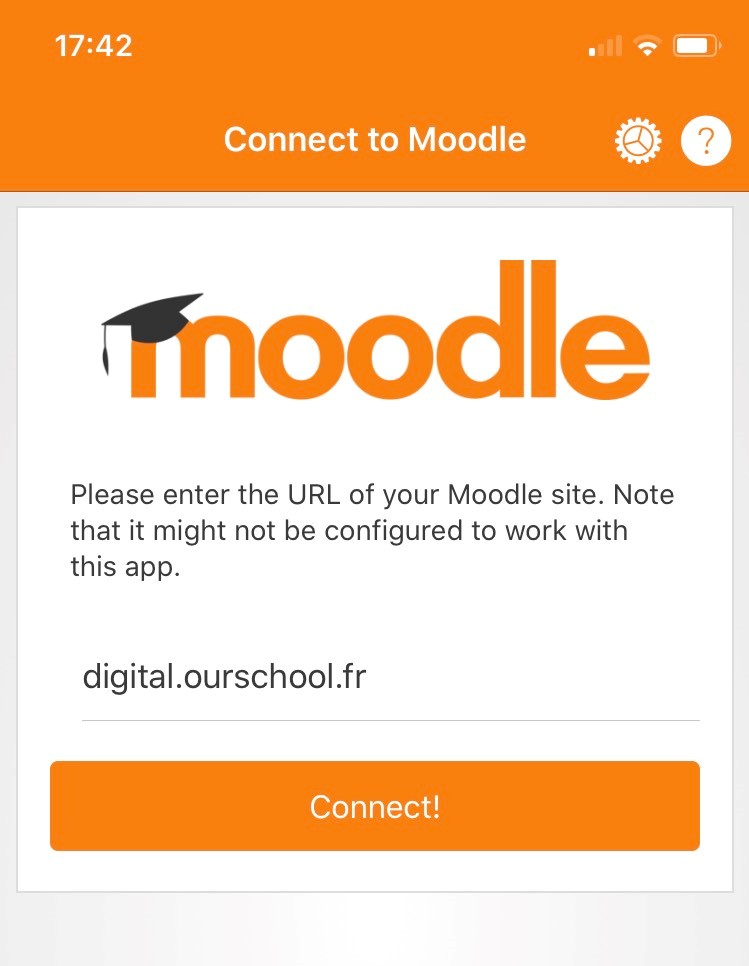
Click connect and the login screen will appear.
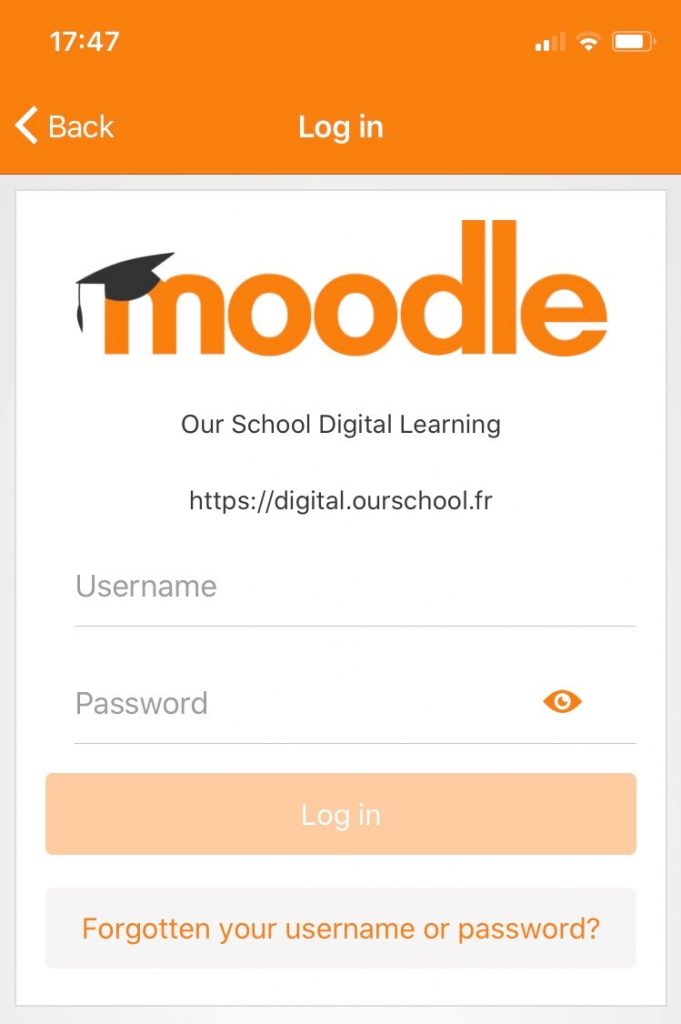
Now click “Forgotten your username or password?”
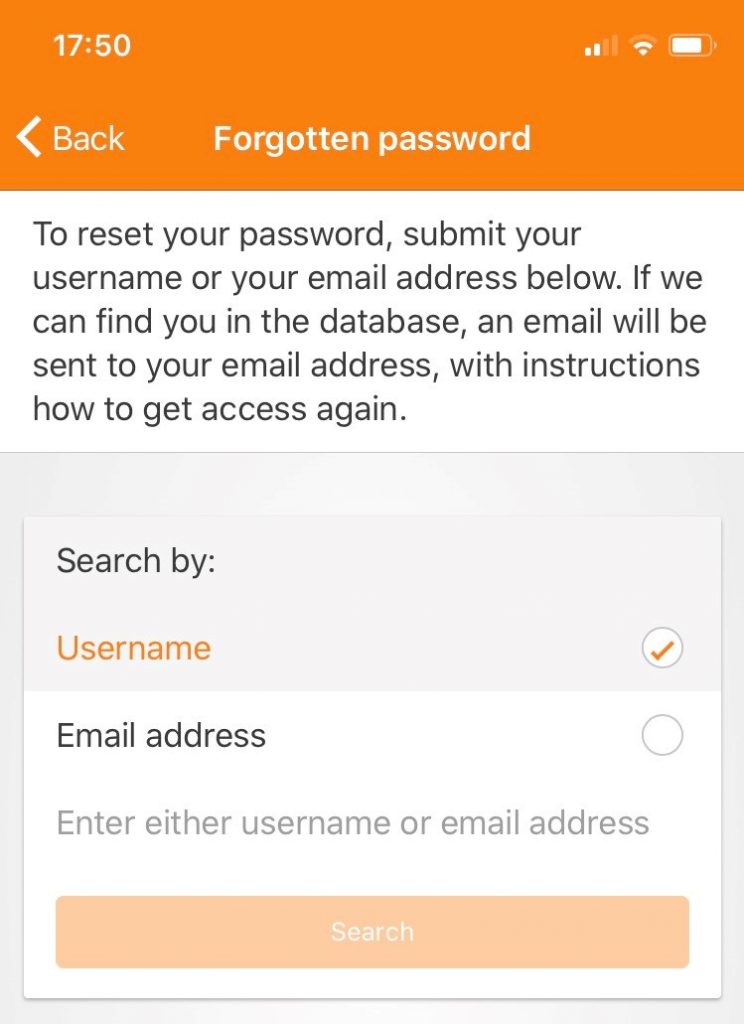
In the field “Enter either username or email address”, enter the email address you use to access the WordPress website.
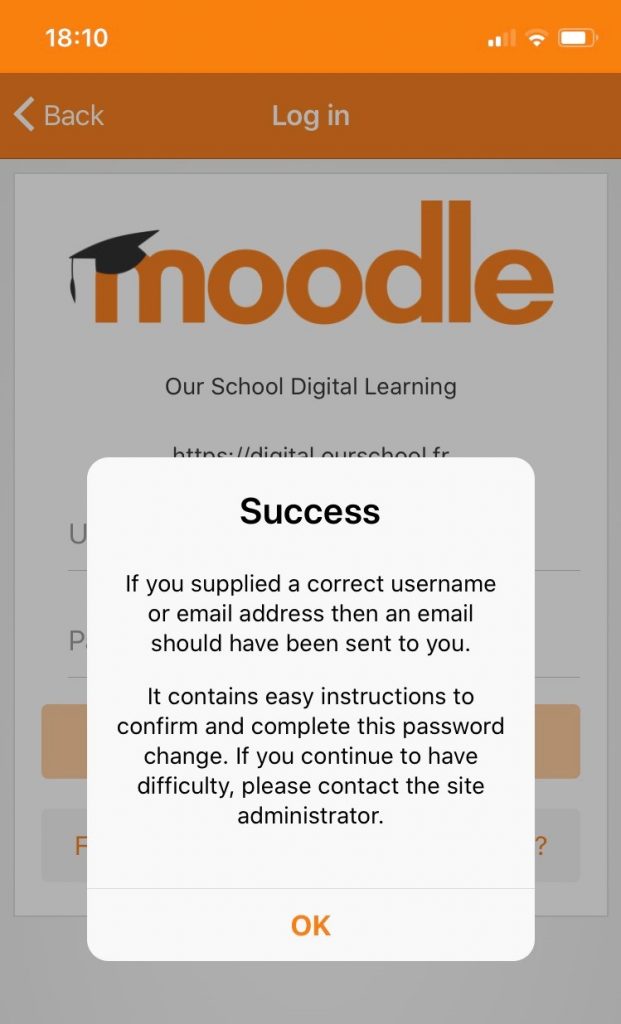
An email should be sent to your mailbox as shown below. Please check in your spam folders should you not receive the email.
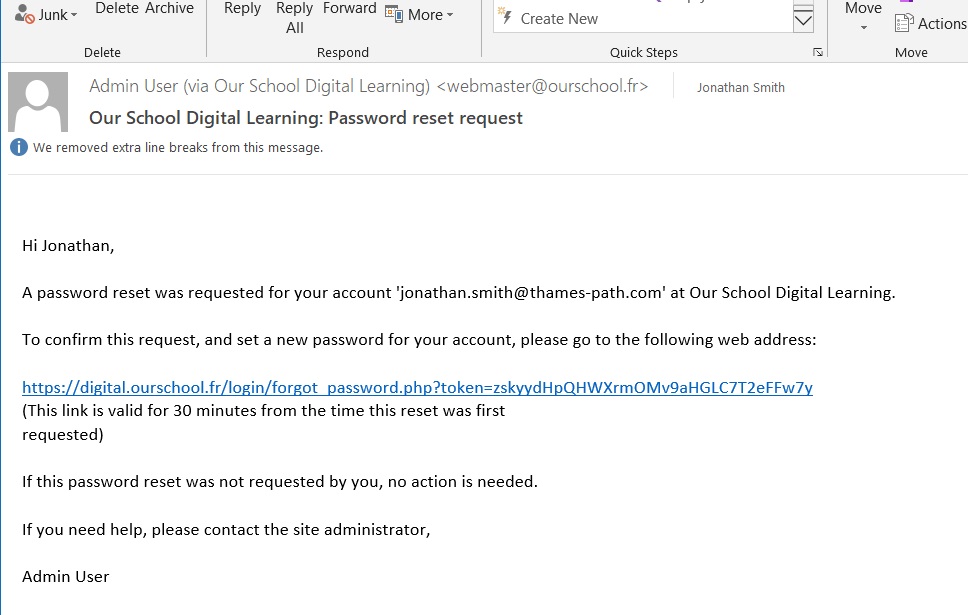
Click on the link in the email and your browser will open allowing you to change your password:
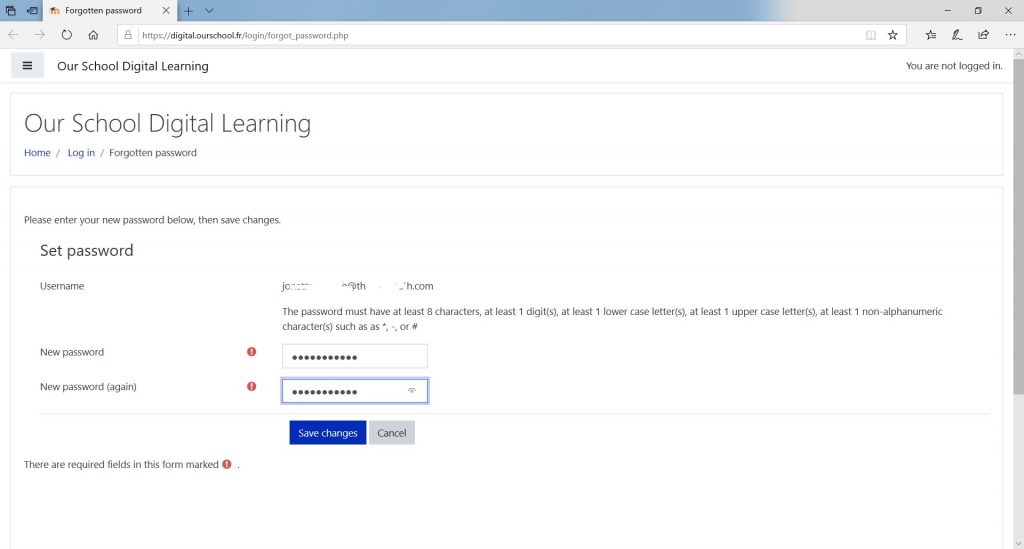
Change your password and click “Save Changes”. If successful, you will be logged in with the new password automatically. into the Browser version of the application. If you wish to continue in the mobile version, close the browser and return to the Mobile mobile application.
You should now see the login screen again. Enter your Our School email address and the password you chose. If you successfuly login, you should see the screen below.
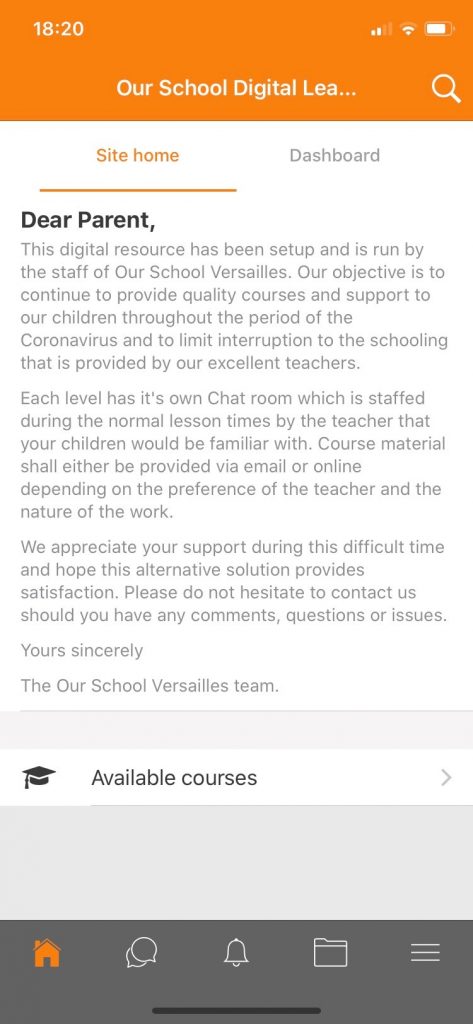
Click on “Available courses” and you will open a list of courses, one for each level offered in Our School.
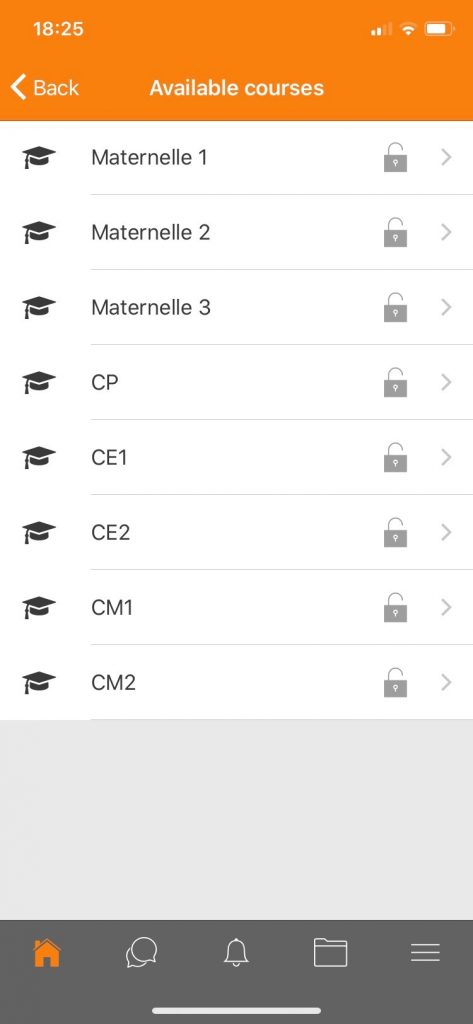
Currently, each course represents a CHAT ROOM that can be used to exchange with teachers during the operating hours of the class. The half-open lock icon indicates you can “subscribe” to the course, but you have not yet done so. You will need to subscribe to each of the courses for which you have children currently enrolled. Each CHAT ROOM is separate and run by different teachers.
Click on one of the classes and you will see the following screen:
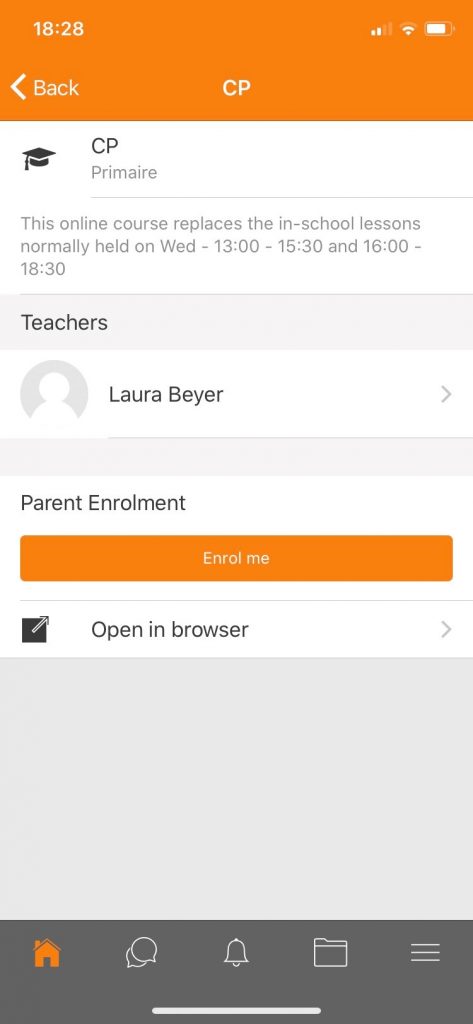
Click on the “Enrol me” button and confirm the “Are you sure…” message that is displayed. You will receive an email confirming you have joined the course.
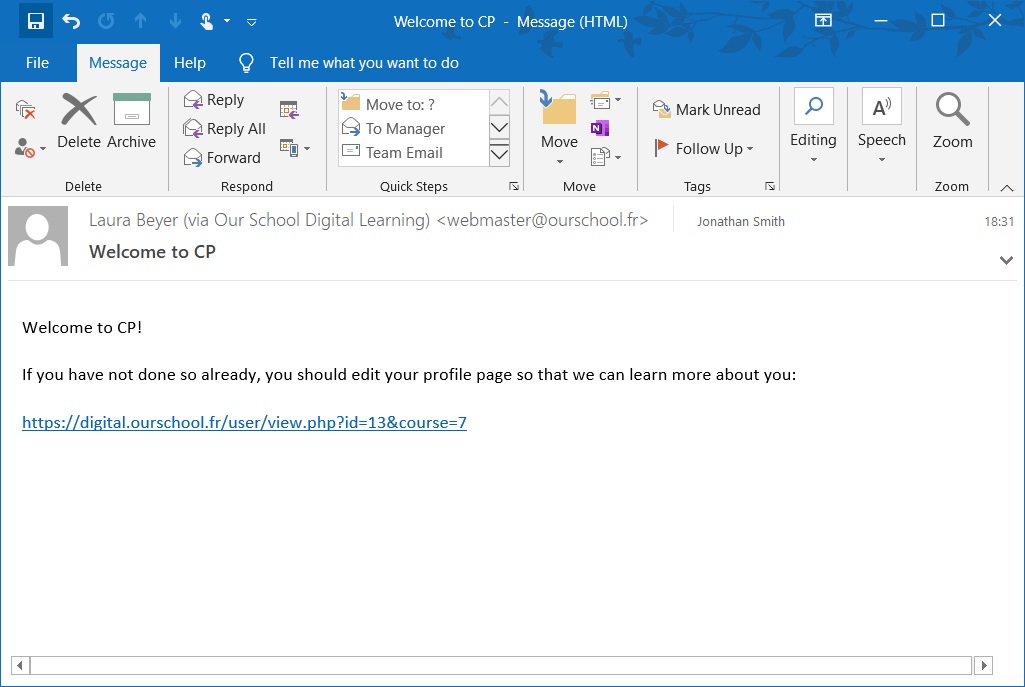
You can ignore this email and we do need you to complete your profile page.
The first time you enter the course you should click on “Contents” to access the Chat Room – subsequently you should arrive directly on the Chat Room page.
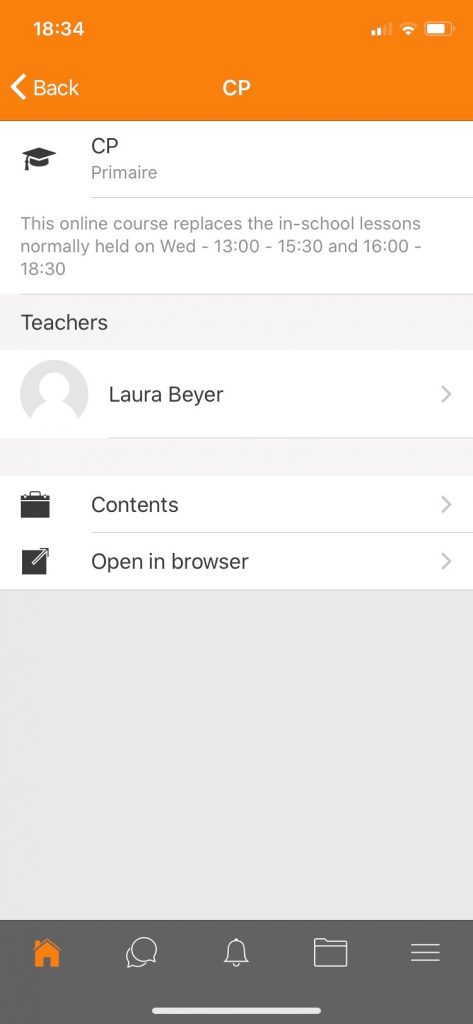
In the following screen, you have 3 options:
- You can go to the “Participants” tab where you will see the list of people connected to the Chat Room
- You can view “past chat sessions” which will allow you to access any discussions prior to you joining.
- Otherwise, you should click on “Click here to enter the chat now”
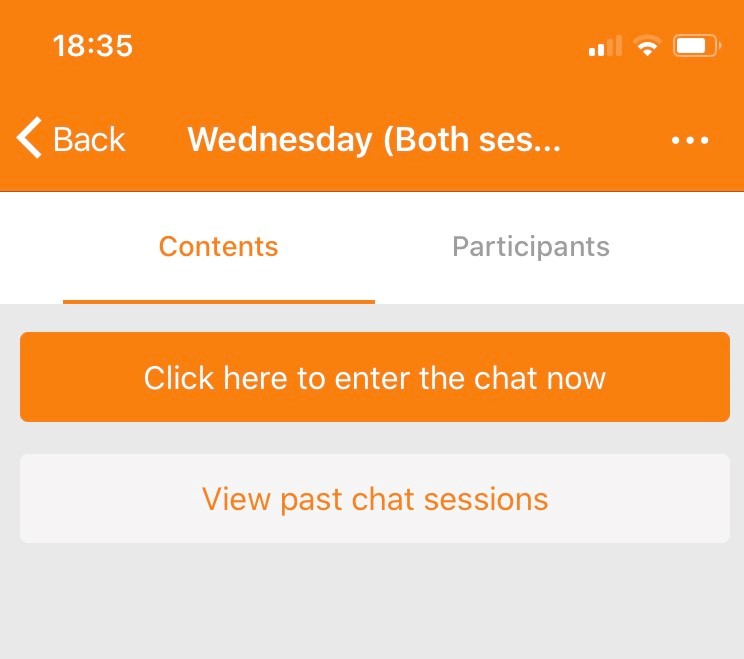
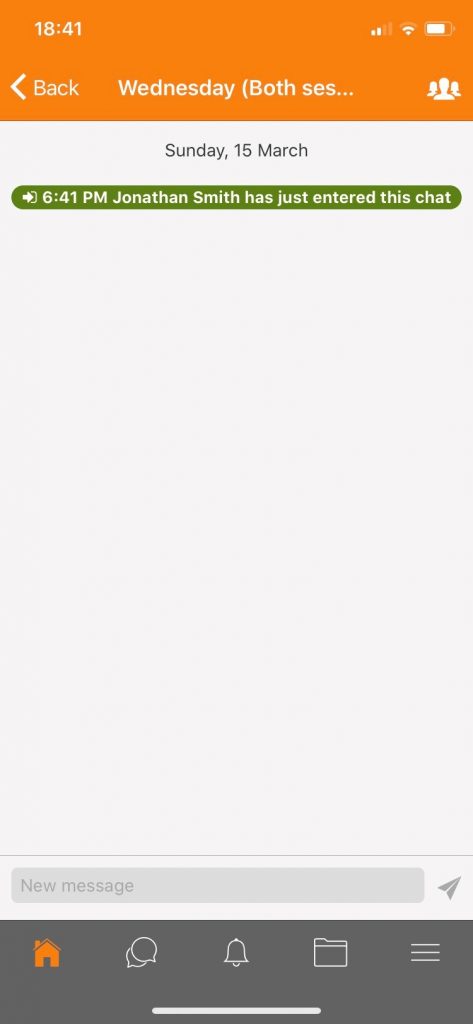
Click on the “Click here to enter the chat now” button and you will enter the discussion. Use the “New Message” button to add messages. Your responses will appear in the space above with the responses from the teachers.